Sincronización del catálogo de Zid
Conecta Zid con Waslo en un clic o instala Waslo desde Zid App Market sin crear otra cuenta.
Última actualización: 12 de octubre de 2026
En Zid App Market
Waslo está publicado en Zid App Market: abre la ficha de Waslo. Dos planes, ambos facturados por Zid con 7 días de prueba gratis:
- Growth, mensual: 559 SAR al mes (Zid muestra 642,85 SAR con IVA incluido).
- Growth, anual: 5.355 SAR al año.
Dos formas de conectar
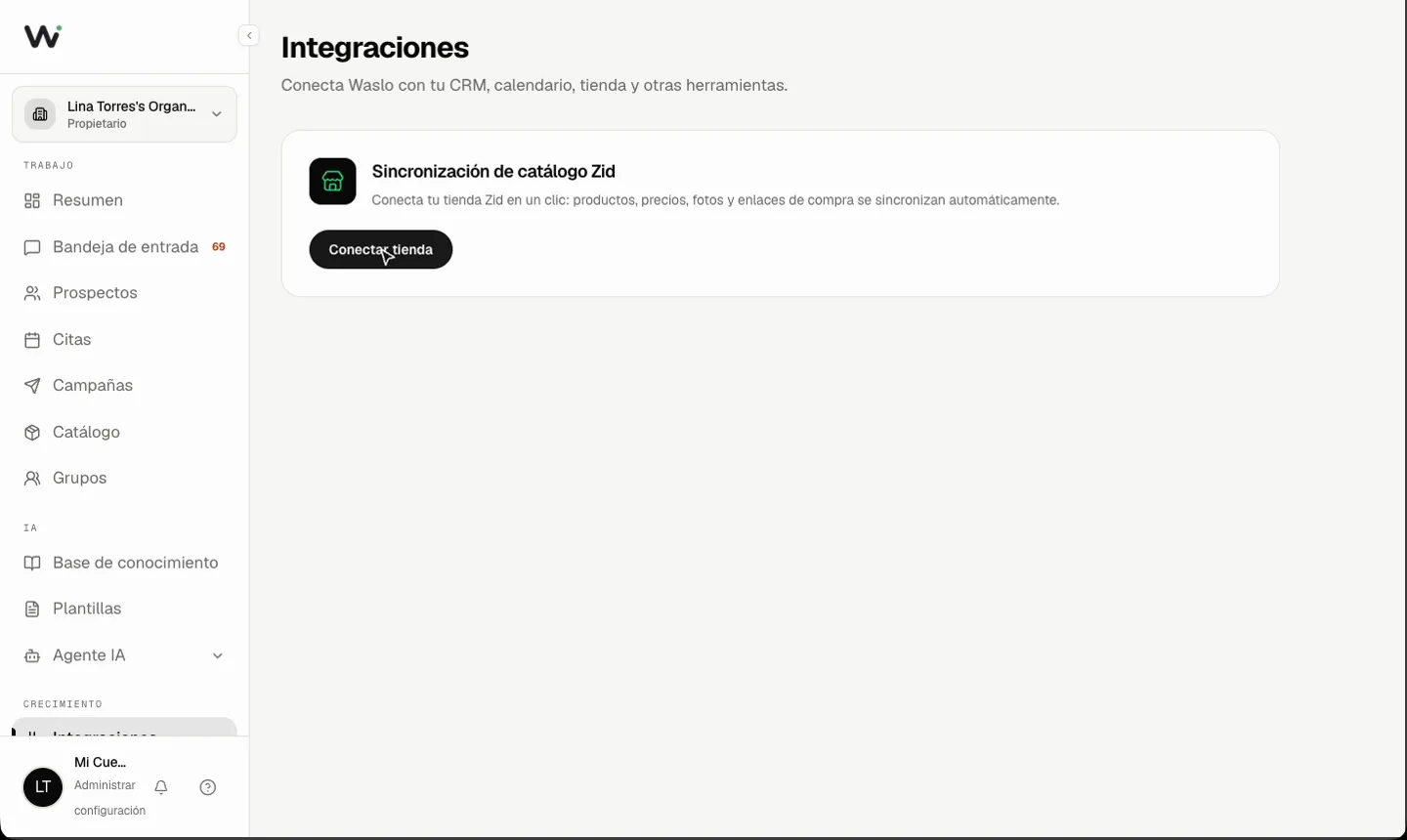
Desde un espacio de Waslo existente: abre Integraciones, elige Zid y pulsa Conectar tienda. Inicia sesión en Zid y aprueba el acceso. La tienda verificada queda vinculada al espacio desde el que empezaste; no hay códigos que copiar.
Desde Zid App Market: instala Waslo y aprueba el acceso. Creamos un espacio independiente para la tienda Zid, sincronizamos el catálogo y abrimos la configuración dentro de Zid. Si el correo verificado ya tiene una cuenta de Waslo, añadimos el nuevo espacio a esa cuenta sin cambiar ningún espacio existente. No se pide otro inicio de sesión en Waslo.
Sincronización y facturación
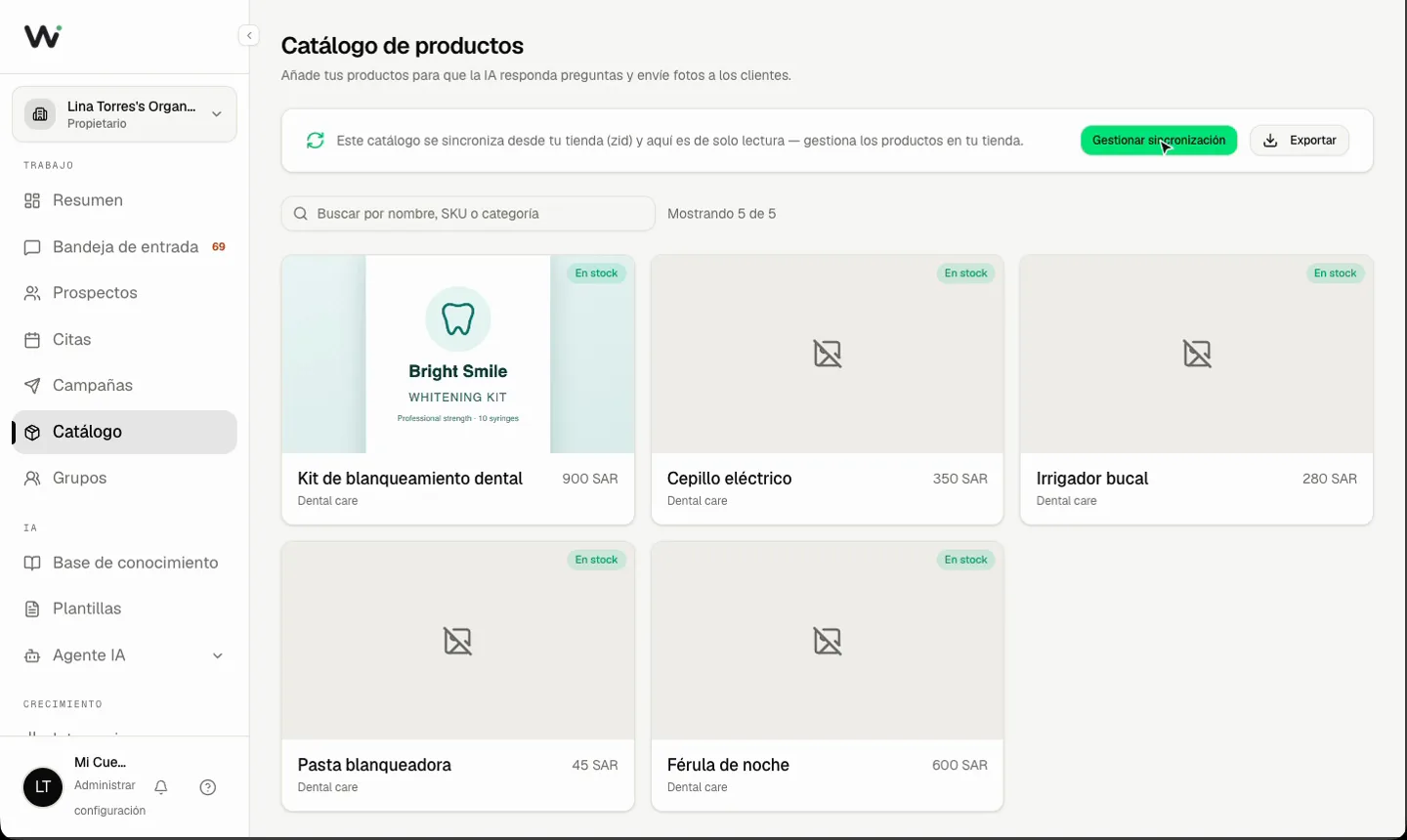
Productos, precios, disponibilidad, fotos, categorías, SKU y enlaces de compra se sincronizan al conectar, con Sincronizar ahora y automáticamente cada día. Waslo usa el Store ID que devuelve Zid; nunca confía en un ID de tienda escrito en el navegador.
Advertencia: un espacio de trabajo tiene una sola fuente de catálogo. Cambiar a una fuente distinta reemplaza (elimina) el espejo anterior, y Waslo te pide confirmar antes de hacerlo.
El espacio creado desde Zid App Market gestiona su prueba, plan y facturas en Zid; no muestra Lemon Squeezy ni compra externa de créditos. Un espacio de Waslo existente que conecta Zid conserva su método de facturación actual.
Al desinstalar Waslo en Zid se borran las credenciales, se desconecta el catálogo y se eliminan los productos sincronizados.