Back
DocsReal Estate Playbook

Real Estate Playbook

Learn how to set up an automated real estate AI agent to qualify leads, share property gallery links, book viewings, and hand off hot buyers.

Waslo Real Estate AI Agent Hero

For modern real estate agencies, speed-to-lead is everything. When a prospective buyer inquires about a property, waiting hours for a response often means losing them to a competitor.

With Waslo, you can connect your WhatsApp number (and other communication channels) to a dedicated, localized AI agent that works 24/7. This playbook walks you through configuring a complete, automated real-estate setup that qualifies buyers, shares listing gallery links, schedules property viewings, and hands off hot leads to your human agents.


What You'll Build

By following this guide, you will deploy a unified AI agent across your communication channels that behaves exactly like a professional real-estate assistant:

Waslo Multi-Channel Central Hub

  1. Multi-Channel Coverage: One AI brain managing incoming messages across WhatsApp, Instagram, Telegram, and email.
  2. Instant Qualification: The agent automatically qualifies leads by gathering their budget, desired number of bedrooms, target location, and buying timeline.
  3. Honest Knowledge Sharing: The agent reads listing data (price, size, features) from your uploaded text documents and shares a direct, clickable link to a Google Drive or CDN folder containing photos and videos.
  4. Calendar Integration: Once a lead is qualified, the agent shares a scheduling link (Google Calendar or Cal.com) so the buyer can book an in-person viewing.
  5. Human Handoff & Notification: The agent tags the lead as HOT and instantly notifies your sales team — by email, WhatsApp, or Telegram — when a buyer is ready for personal follow-up.

Step 1 — Connect WhatsApp (Primary Channel)

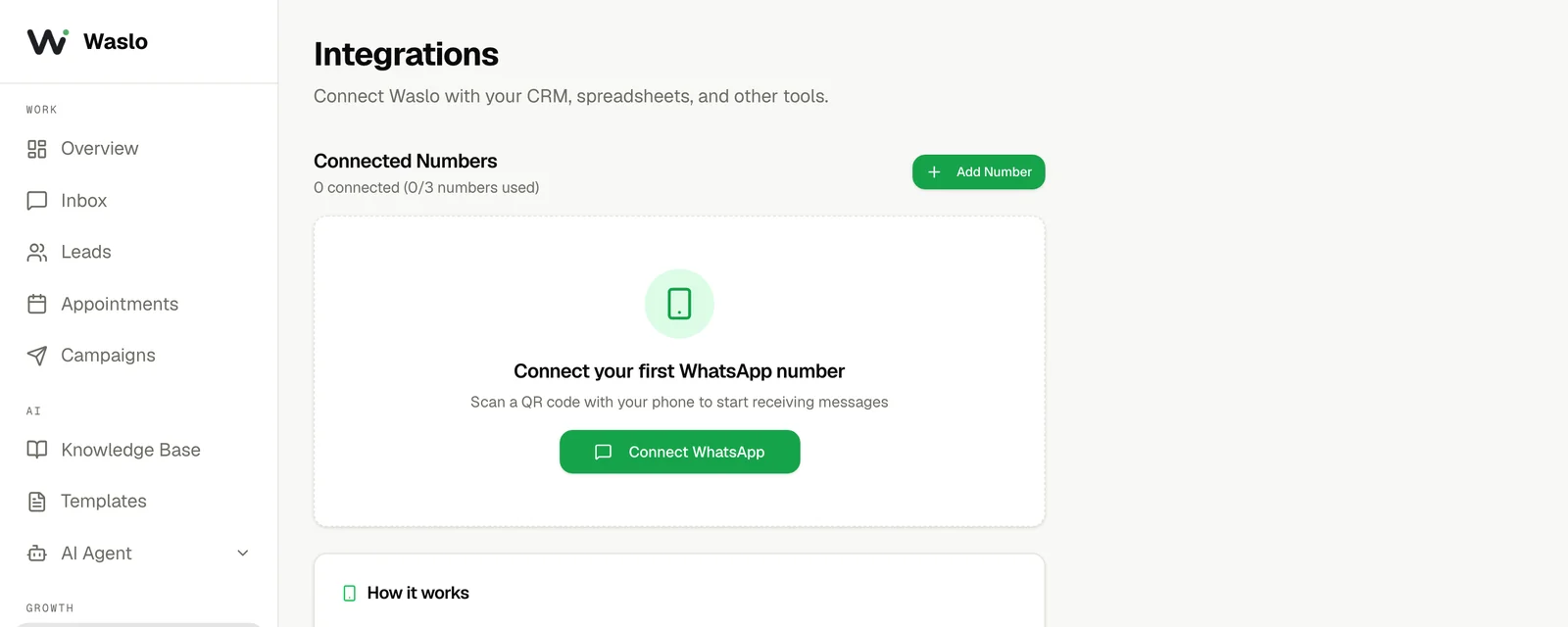
First, we will establish the primary channel where most of your prospective buyers will reach out. Waslo uses a fast, free QR-code link method that mirrors WhatsApp Web.

  1. Go to your Waslo Dashboard → Integrations → WhatsApp.
  2. Click Connect WhatsApp.
  3. Open WhatsApp on your phone, navigate to Settings → Linked Devices → Link a Device, and scan the QR code displayed on the screen.
  4. Wait a few seconds for the status to flip to Connected.

Waslo Integrations page showing the Connect WhatsApp button to scan a QR code and link your number


Step 2 — Add More Channels (Optional)

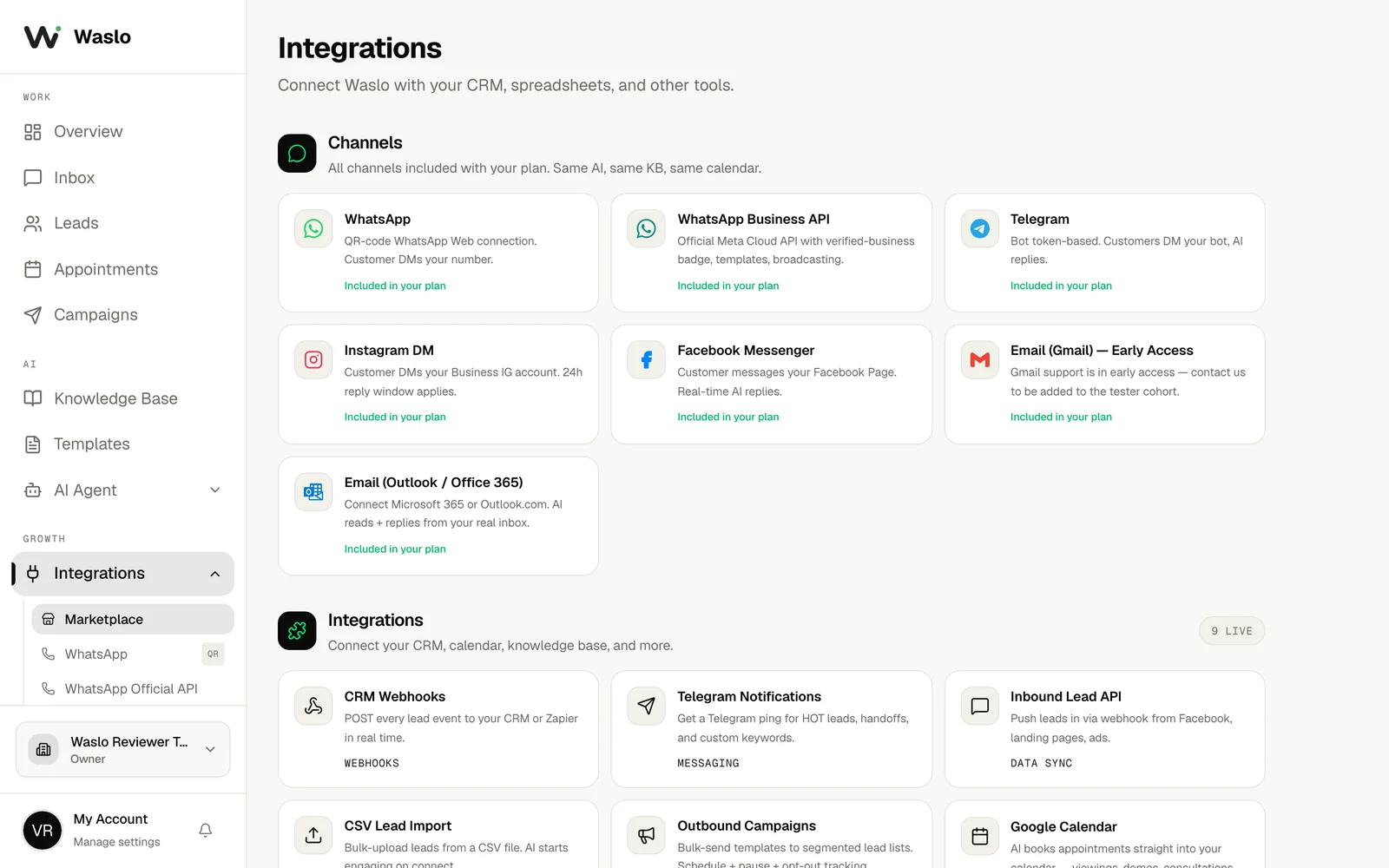
Maximize your reach by connecting additional channels. Buyers browsing your listings on Instagram or finding your agency on Telegram can engage with the exact same AI agent.

  1. Go to Dashboard → Integrations.
  2. Scroll to the Channels Marketplace and choose your desired platforms (e.g., Instagram DM, Telegram, or Email).
  3. Follow the simple Meta OAuth or bot token prompts to connect each channel.
  4. All messages from these channels will route to the same unified Waslo inbox, sharing the same knowledge base.

Waslo Channels Marketplace showing WhatsApp, Telegram, Instagram, Messenger and Email all feeding one inbox


Step 3 — Build the Knowledge Base (Listings & Galleries)

Waslo AI agents do not invent answers; they answer exclusively using facts stored in your Knowledge Base. Because Waslo's Knowledge Base is text-based, the agent does not send images directly in the chat. Instead, it shares high-quality listing links that buyers can click to view photos/videos.

Sharing Listing Gallery Link

To set up your listing database:

  1. Create a structured document (PDF, TXT, or DOCX) containing your active listings. For each property, specify:
    • Title & Location: (e.g., "3-Bedroom Modern Apartment, Dubai Marina")
    • Specs: Price, size, number of bedrooms/bathrooms, key amenities.
    • Gallery Link: A direct link to a Google Drive folder, Dropbox, or your website listing page where photos and videos are hosted.
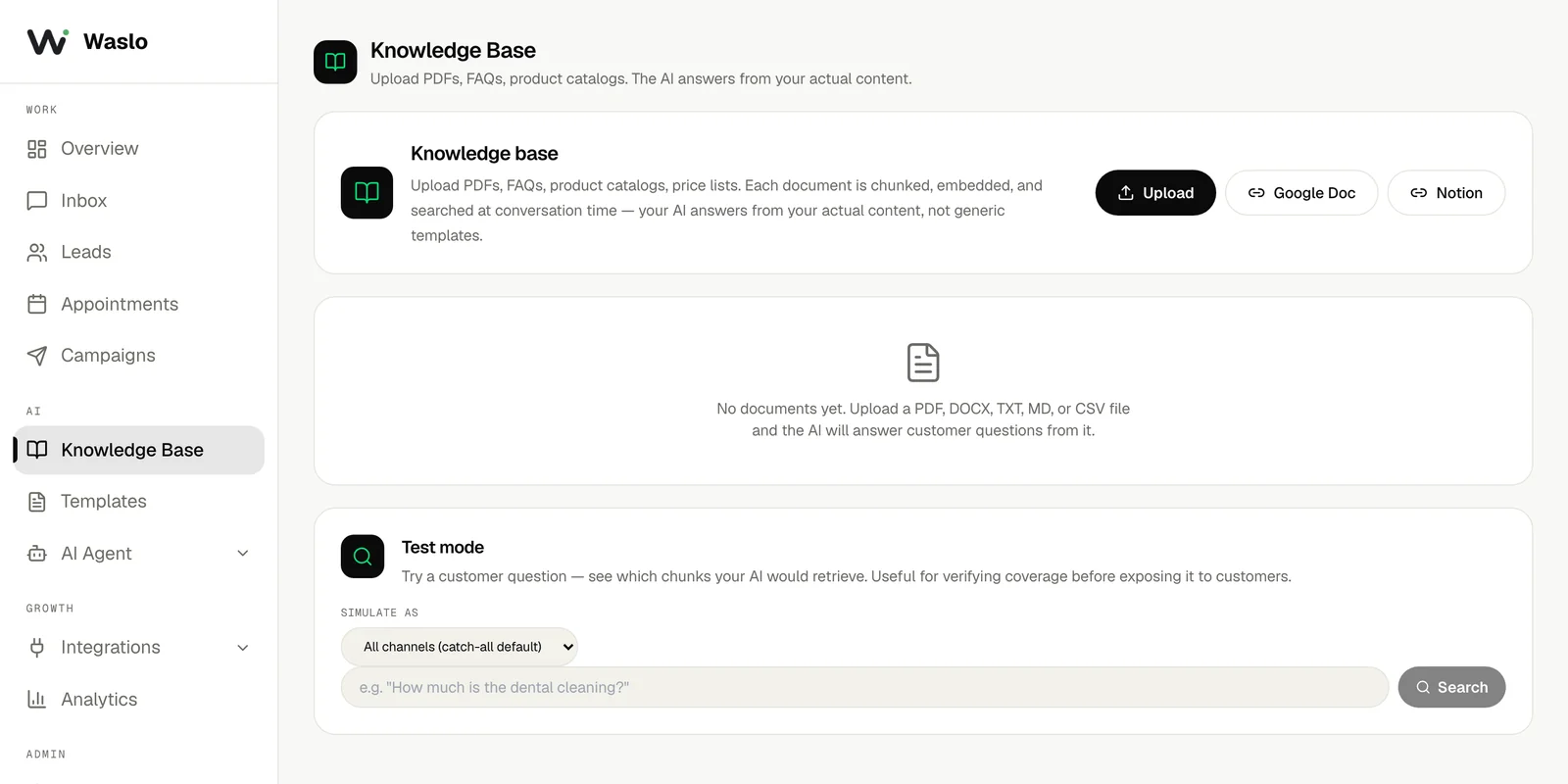
  2. Go to Dashboard → Knowledge Base.
  3. Drag and drop your listing document into the upload zone and click Save.

Waslo Knowledge Base page with Upload, Google Doc and Notion options for adding property listings

Example Knowledge Base Entry: "Property ID: MARINA-3B. 3-Bedroom Apartment in Dubai Marina. Price: $850,000. Features: Full marina view, high floor, infinity pool, 1,800 sq ft. Photos & Video Gallery: https://drive.google.com/drive/folders/your-marina-3b-photos"


Step 4 — Tune the Agent to Qualify Buyers

Next, configure the AI agent's personality and instructions so it acts as an expert real estate consultant. The agent should be welcoming, answer property questions accurately using the Knowledge Base, and systematically qualify the buyer before offering a viewing.

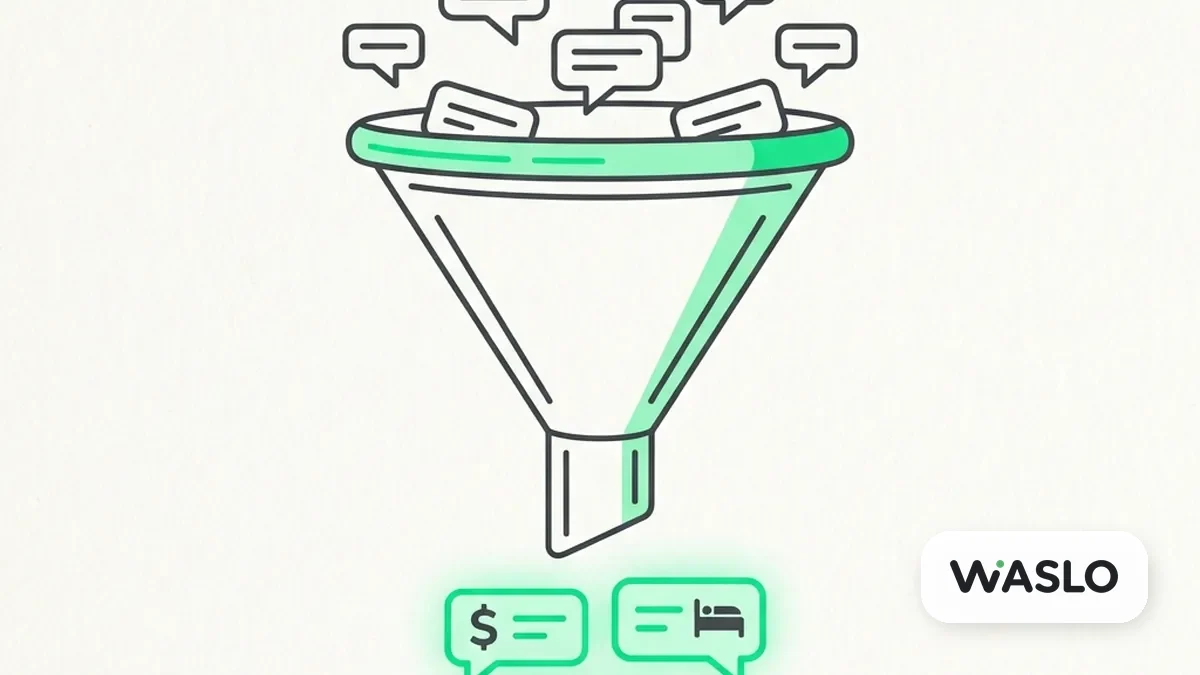
Abstract Funnel of Lead Qualification

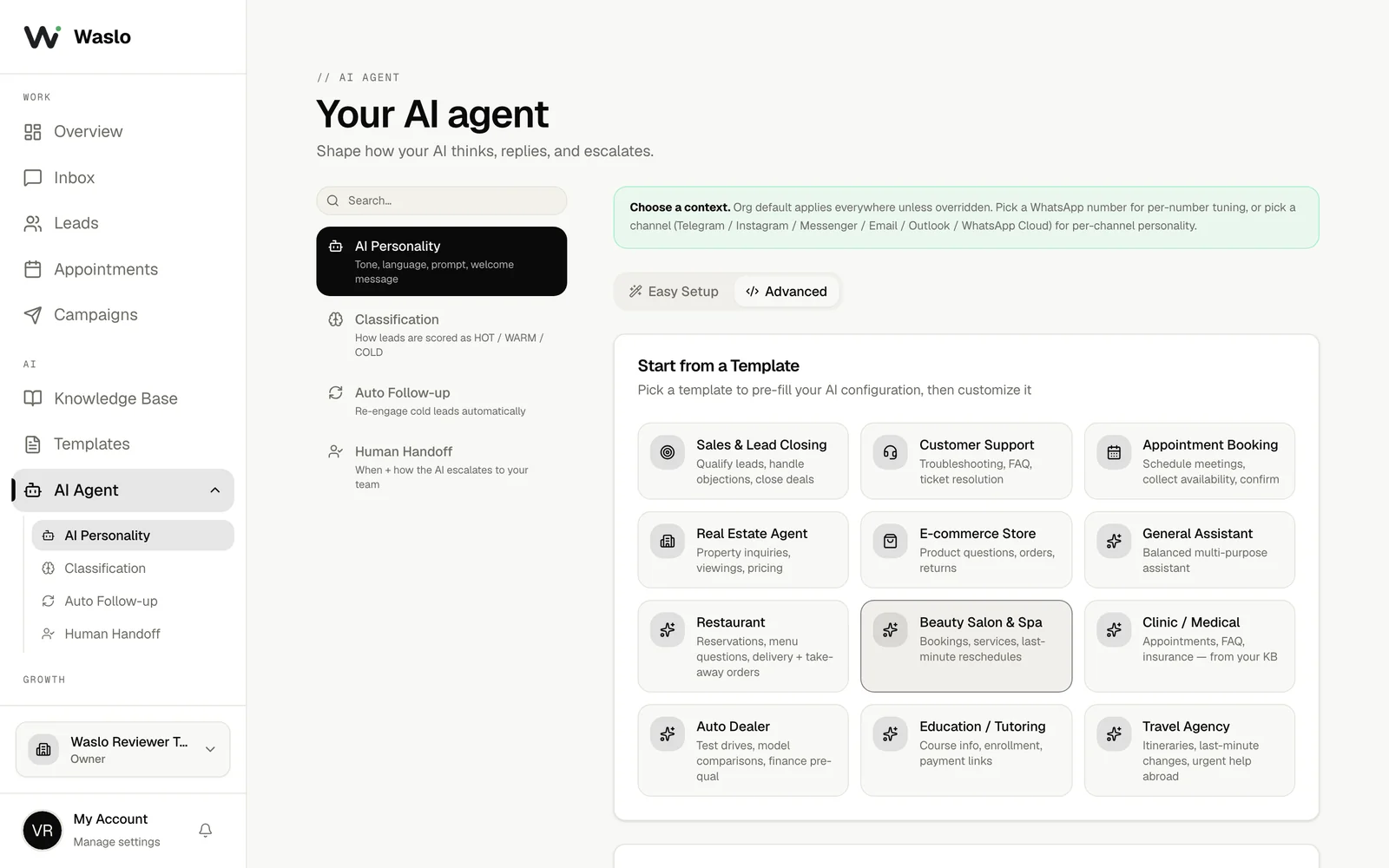
  1. Go to Dashboard → AI Agent → AI Personality.
  2. Select the Real Estate Agent template or use the custom prompt editor.
  3. Set your System Prompt with clear qualifying directives. Customize it with your agency's name and tone.

Waslo AI Agent personality page with the Real Estate Agent template among the starting templates

Recommended System Prompt:

You are Jordan, a professional AI Sales Assistant for Premier Realty. Your goal is to help buyers find their perfect home and book property viewings.

Follow this conversation flow:
1. Welcome the buyer warmly.
2. When they ask about properties, check the Knowledge Base. Summarize matching property details (specs, price, location) and share the exact gallery URL provided in the text. Bold the link so they can click it.
3. Qualify the buyer by asking:
   - What is their maximum budget?
   - How many bedrooms do they need?
   - What is their preferred location/neighborhood?
   - How soon are they looking to buy or view?
4. Keep replies concise, helpful, and under 3 sentences per message.
5. Never make up details or provide links not present in the Knowledge Base.

Step 5 — Connect the Calendar for Viewings

Once a buyer is qualified, you want to get them booked for an in-person tour immediately. By integrating your calendar, the AI agent can share a scheduling link when the lead expresses high interest.

Viewing Booked via Calendar

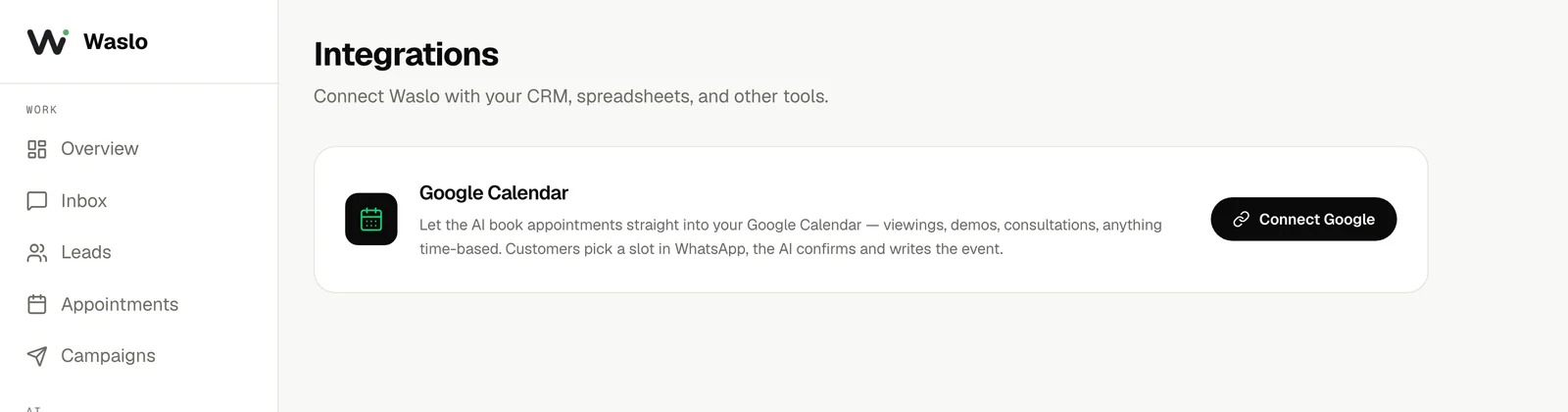
  1. Go to Dashboard → Integrations → Calendar.
  2. Connect your Google Calendar or link your Cal.com / Calendly scheduling URL.
  3. In your AI agent instructions, authorize the agent to share this scheduling link:

Waslo Integrations Calendar tab with the Connect Google button for booking property viewings


Step 6 — Classify & Hand Off Hot Leads

You don't want to spend time manually reading every conversation. Waslo's automatic classification separates casual browsers from active buyers, notifying you the instant a lead is "hot".

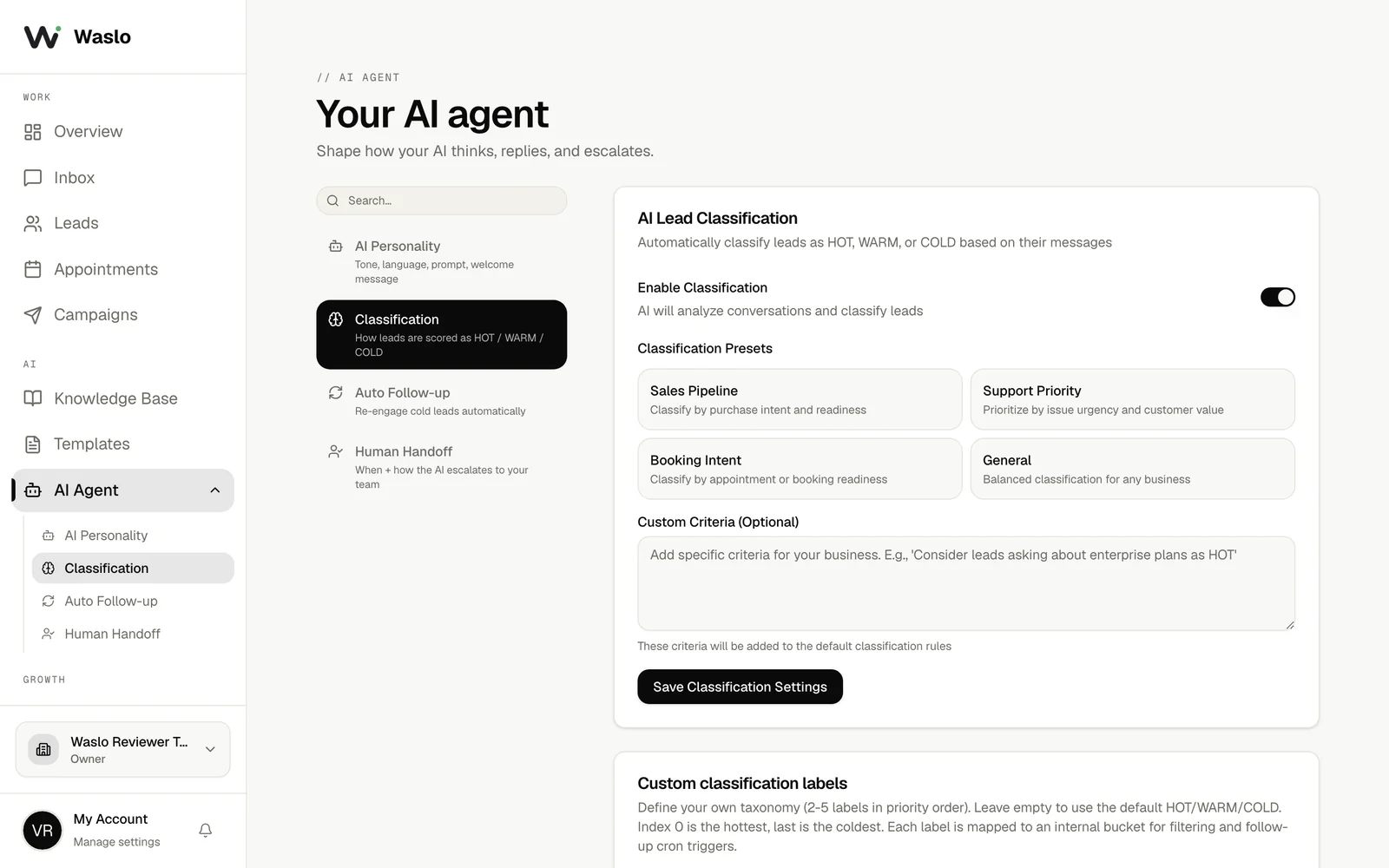
  1. Go to Dashboard → AI Agent → Classification.
  2. Select the Sales Pipeline preset or define your own rules:
    • HOT: Buyer has specified a budget, bedrooms, and area, and wants to book a viewing or speak to an agent.
    • WARM: Buyer has asked questions about a property but has not yet answered all qualification questions.
    • COLD: Casual greeting or spam.
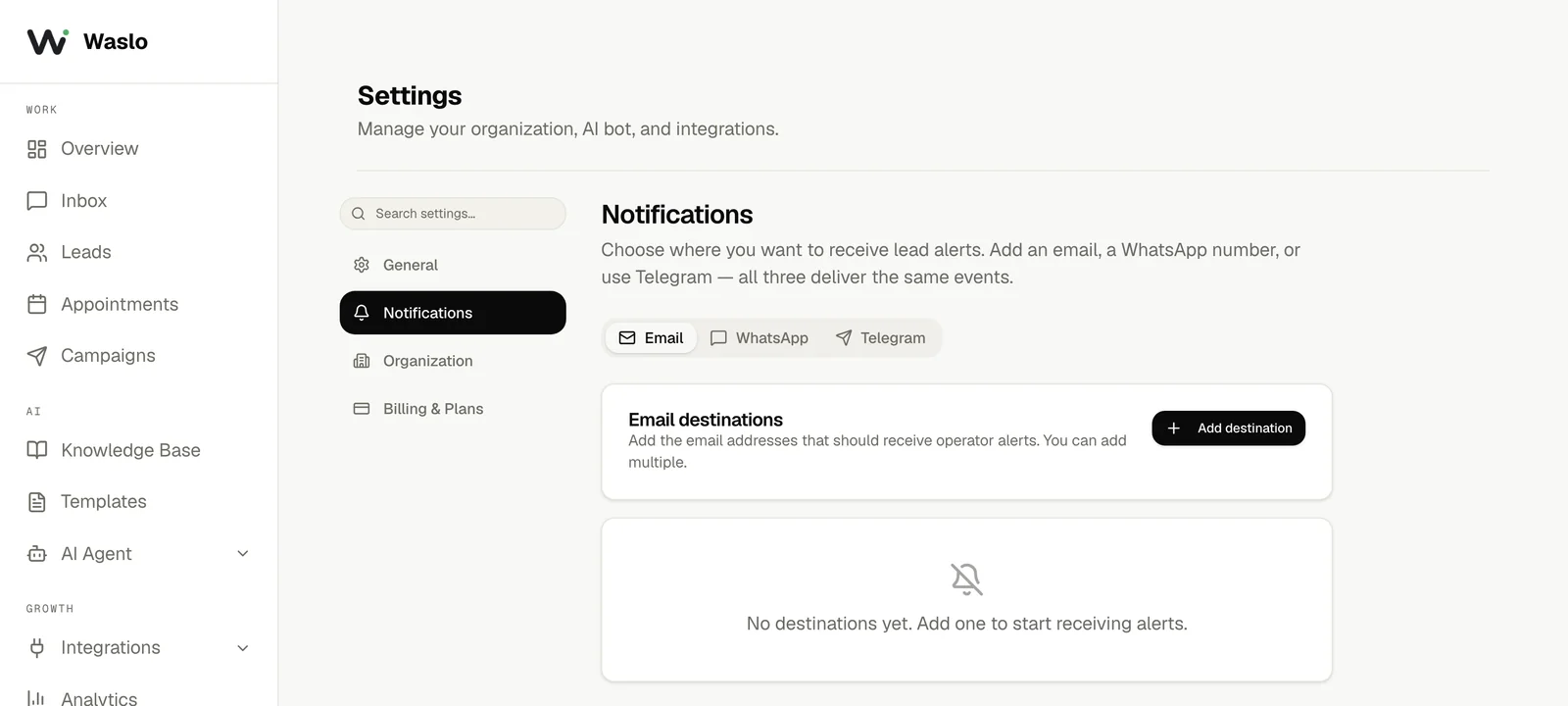
  3. Go to Dashboard → Settings → Notifications and choose where HOT-lead and handoff alerts are delivered. Waslo supports three destinations — Email, WhatsApp, and Telegram — and you can enable any or all of them. For example, add your WhatsApp number to get instant alerts on your phone the moment a buyer is qualified.

Waslo Lead Classification page with the Sales Pipeline preset and HOT, WARM and COLD lead categories

Waslo Settings Notifications page with Email, WhatsApp and Telegram destination tabs for lead alerts


The Result — A Seamless Lead Journey

Once configured, the buyer's journey is fully automated, highly professional, and extremely fast. Here is a preview of how a WhatsApp interaction flows in the live chat log:

Buyer: Hi, do you have any 3-bedroom apartments in Dubai Marina?

Premier Realty AI: Yes! We have a 3-bedroom in Dubai Marina (MARINA-3B) — full marina view, high floor, infinity pool, 1,800 sq ft, priced at $850,000. Here are the photos and video: drive.google.com/.../marina-3b. May I ask your budget and how soon you're looking to view?

Buyer: Budget is around $900k, looking within the next 2 weeks.

Premier Realty AI: Perfect — MARINA-3B fits well within your budget. You can book an in-person viewing here: cal.com/premier-realty/viewing. Once you pick a time, our agent will confirm and meet you on site.

What Happens Behind the Scenes:

  1. Instant Answer: The buyer gets immediate answers about your 3-bedroom apartment along with a clickable link to see the photos.
  2. Qualification Completed: The AI gathers the buyer's budget, area preference, and timeline.
  3. Call-to-Action: The AI shares your Cal.com link, booking the viewing directly on your calendar.
  4. Human Notification: Waslo immediately classifies the lead as HOT, pauses the AI agent for this lead, and sends an alert through your chosen destination (Email, WhatsApp, or Telegram):

    "HOT Lead Alert: John Doe (+123456789) is qualified! Budget: $850k, Area: Marina, Bed: 3, Timeline: 2 weeks. Viewing scheduled: June 3rd at 2:00 PM."

  5. Perfect Handoff: Your human agent steps in with full context, ready to close the deal.

Playbook Checklist

Ready to deploy? Make sure you have completed each of these setup steps:

  • Integrations: WhatsApp is active and showing a green Connected status.
  • Knowledge Base: Uploaded listing documents with clear specs and direct Drive/CDN gallery links.
  • AI Instructions: Configured the qualifying flow with maximum budget, bedrooms, location, and timeline questions.
  • Calendar: Connected your scheduling link and added the URL to your system prompt.
  • Classification: Sales Pipeline preset enabled, with HOT-lead alerts routed to your chosen destination (Email, WhatsApp, or Telegram) in Settings → Notifications.

Related guides

Ready to get started?

75 free credits on signup — no card needed.

Get Started