Back
DocsGym Playbook

Gym Playbook

Learn how to set up an automated fitness AI agent to answer membership queries, book free trials, share schedules, and notify trainers.

Waslo Gym Playbook Hero

For gym owners, martial arts academies, and yoga studios, keeping classes full and converting inquiries into memberships is a non-stop task. Prospects ask about prices, hours, and class timetables daily.

With Waslo, you can connect your WhatsApp number to an AI agent that handles general gym queries 24/7. This playbook guides you through setting up an AI agent that answers FAQs, books free trials, and routes serious prospects immediately to your sales team.


What You'll Build

Waslo Multi-Channel Central Hub

  1. Multi-Channel Coverage: One AI brain managing incoming messages across WhatsApp, Instagram, Telegram, and email.
  2. Instant FAQ Answers: The agent answers membership, price, and facility questions instantly from your custom Knowledge Base.
  3. Honest Schedule Sharing: The agent describes your class categories and shares clickable links to timetables or signup sheets.
  4. Calendar Integration: Prospects book a free trial session directly on Google Calendar or Cal.com.
  5. Staff Notifications: The agent automatically classifies high-intent prospects as HOT and alerts trainers or sales staff via Email, WhatsApp, or Telegram.

Step 1 — Connect WhatsApp

First, we will establish the primary channel where most of your customers will reach out. Waslo uses a fast QR-code link method that mirrors WhatsApp Web.

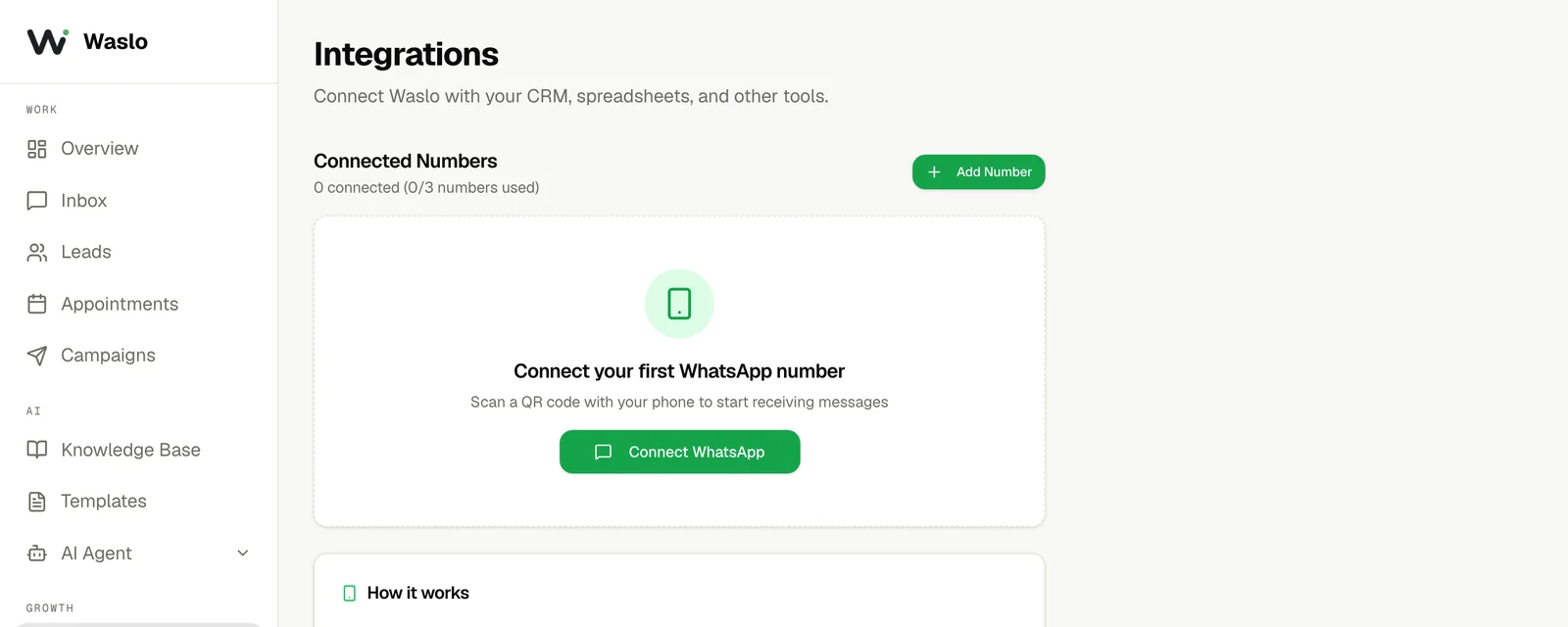
  1. Go to your Waslo Dashboard → Integrations → WhatsApp.
  2. Click Connect WhatsApp to display the QR code.
  3. Open WhatsApp on your phone, navigate to Settings → Linked Devices → Link a Device, and scan the QR code.
  4. Wait a few seconds for the status to flip to Connected.

Step 1 — Connect WhatsApp


Step 2 — Add More Channels (Optional)

You can expand your customer outreach by connecting other popular messaging channels under a single inbox.

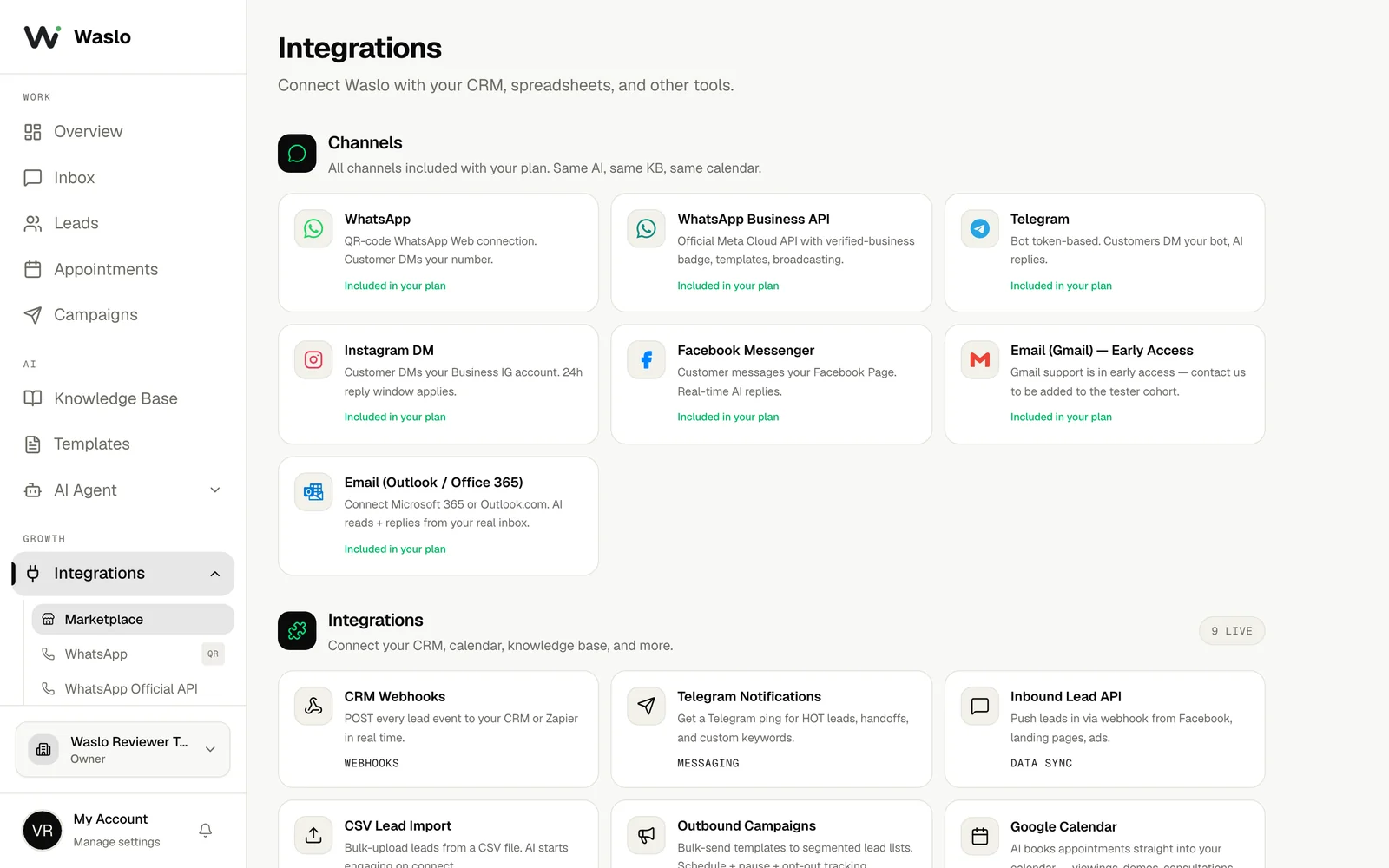
  1. Go to Dashboard → Integrations.
  2. Scroll to the Channels Marketplace and choose your desired platforms (e.g., Instagram DM, Telegram, or Email).
  3. Follow the Meta OAuth or bot token prompts to connect each channel.
  4. All messages will route to the same unified Waslo inbox and share the same Knowledge Base.

Step 2 — Add More Channels (Optional)


Step 3 — Build the Knowledge Base

Your AI agent answers membership, price, and facility questions using documents you upload. Because Waslo's Knowledge Base is text-based, the agent does not send timetable images directly in the chat. Instead, it shares high-quality, clickable links to class schedules or membership portals.

Step 3 — Build the Knowledge Base

To set up your gym's Knowledge Base:

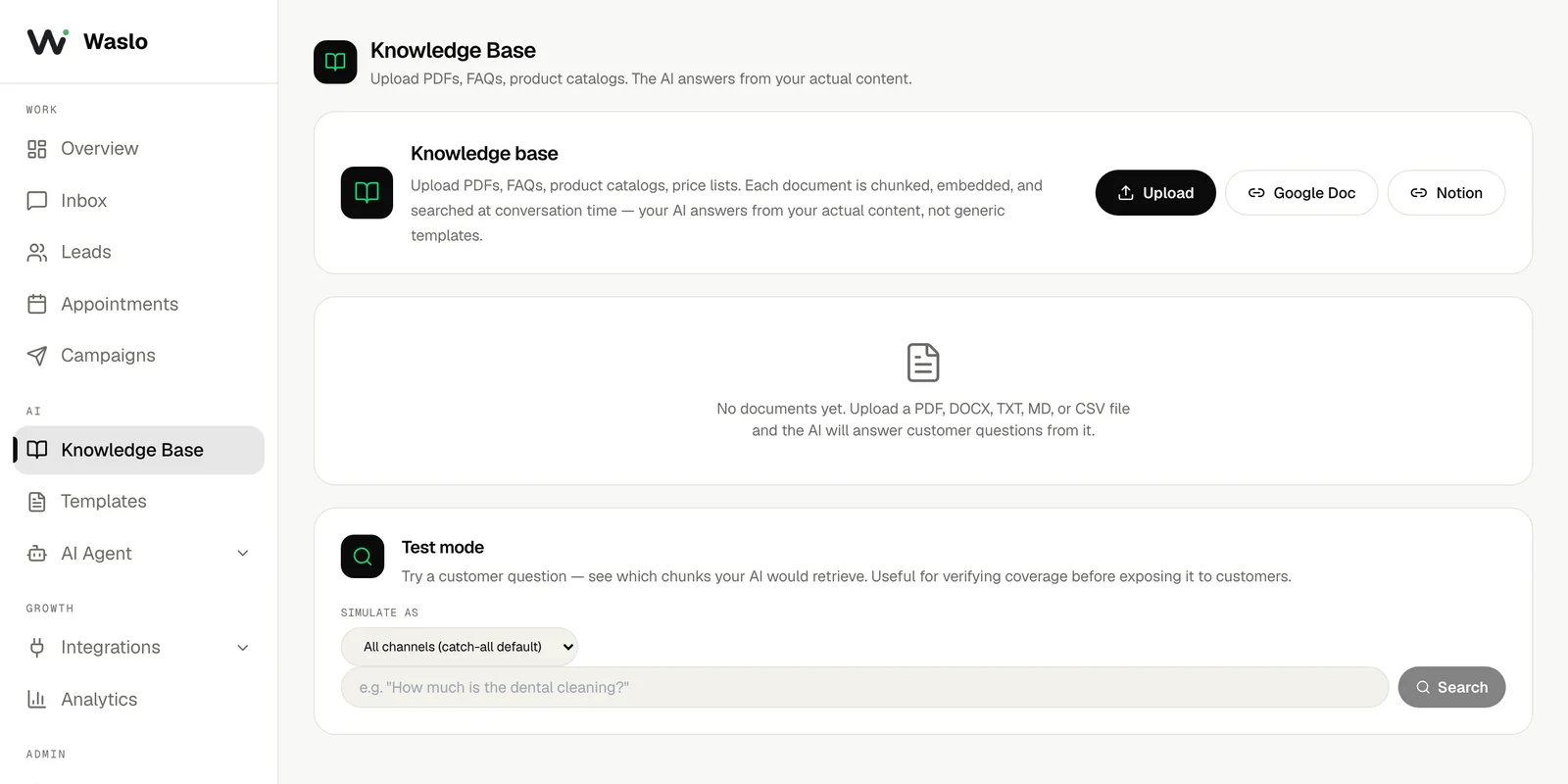
  1. Create a structured document (PDF, TXT, or DOCX) containing your gym's details: opening hours, membership plans & pricing, trainer bios, and direct Drive or CDN links to timetables.
  2. Go to Dashboard → Knowledge Base.
  3. Upload your document and click Save.

Step 3 — Build the Knowledge Base


Step 4 — Tune the Agent Personality

Configure the AI agent's instructions to behave as a professional fitness consultant.

Honesty & Capability Guardrail: The AI agent answers general gym queries and schedules trial sessions. It must never give health, medical, nutritional, or personal-training coaching advice. Always direct prospects to a certified trainer or medical professional for coaching and health advice.

Step 4 — Tune the Agent Personality

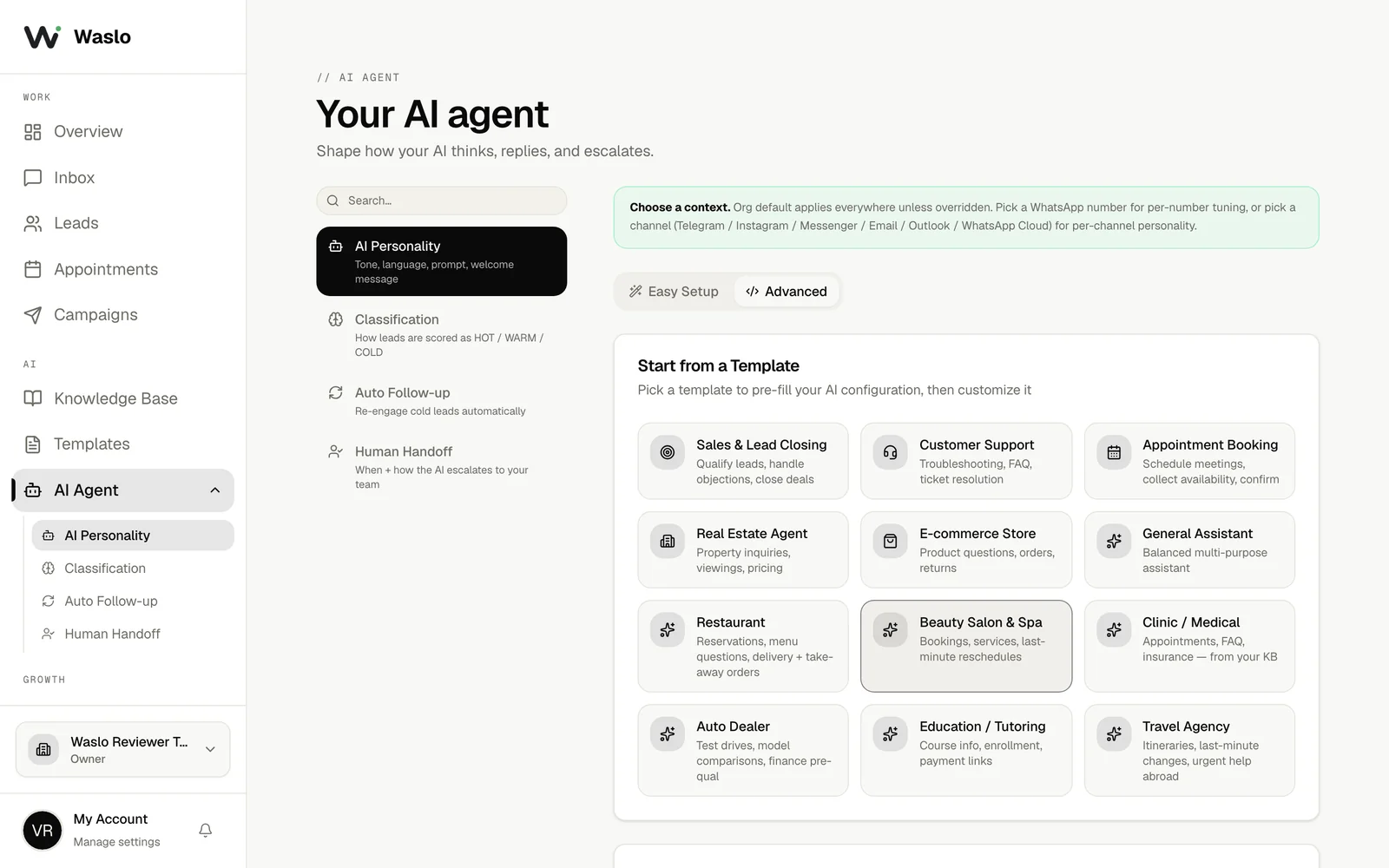
  1. Go to Dashboard → AI Agent → AI Personality.
  2. Start from the Gym & Fitness template (or Sales & Lead Closing as a fallback).
  3. Set your System Prompt with clear administrative limits.

Step 4 — Tune the Agent Personality

Recommended System Prompt:

You are Jordan, a professional AI Consultant for FitLife Gym. Your goal is to welcome prospects, answer membership and class inquiries using the Knowledge Base, and guide them to book a free trial.

Guidelines:

  1. Answer administrative questions (pricing, hours, facilities, trainers) using the Knowledge Base.
  2. When prospects ask for the class schedule, share the exact timetable URL from the Knowledge Base. Bold the link so they can click it.
  3. You cannot give health, coaching, or nutrition advice. Always politely decline and offer to book them a trial or connect them with a trainer.
  4. Keep replies friendly, professional, and under 3 sentences.

Step 5 — Connect the Calendar

Link your scheduling system so the AI agent can share a free trial booking link.

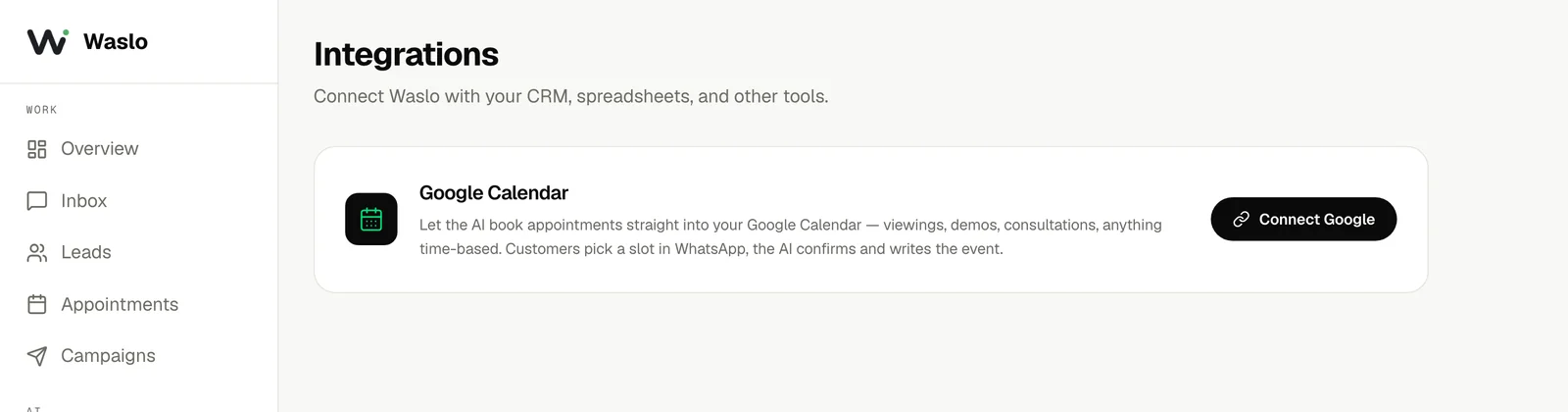
  1. Go to Dashboard → Integrations → Calendar.
  2. Connect Google Calendar or Cal.com.
  3. In your prompt, authorize the agent to share this scheduling link:

Step 5 — Connect the Calendar

Step 5 — Connect the Calendar

Waslo will automatically monitor your bookings and send a friendly 24-hour appointment reminder to the customer before their visit.


Step 6 — Classify & Hand Off Hot Leads

Classify casual browsers from ready-to-join members.

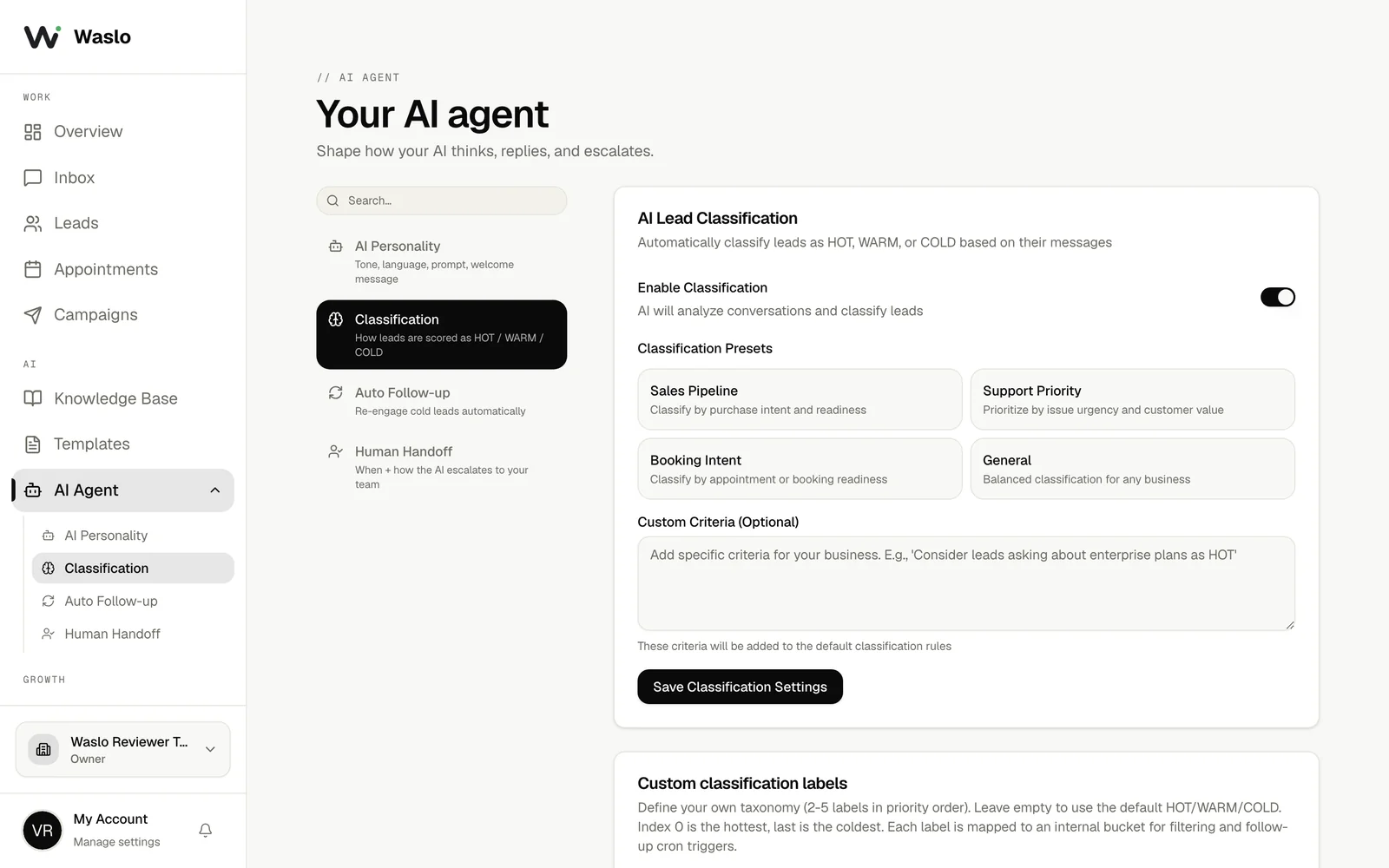
  1. Go to Dashboard → AI Agent → Classification.
  2. Select the Booking Intent preset, or define your own rules:
    • HOT: Prospect wants to join immediately, has questions about sign-up, or wants to book a trial.
    • WARM: Prospect is asking general questions about prices or facilities.
    • COLD: Casual greetings or spam.

Step 6 — Classify & Hand Off Hot Leads


Step 7 — Configure Staff Notifications

Ensure your staff is notified the instant a customer is classified as HOT or requests to speak to a human.

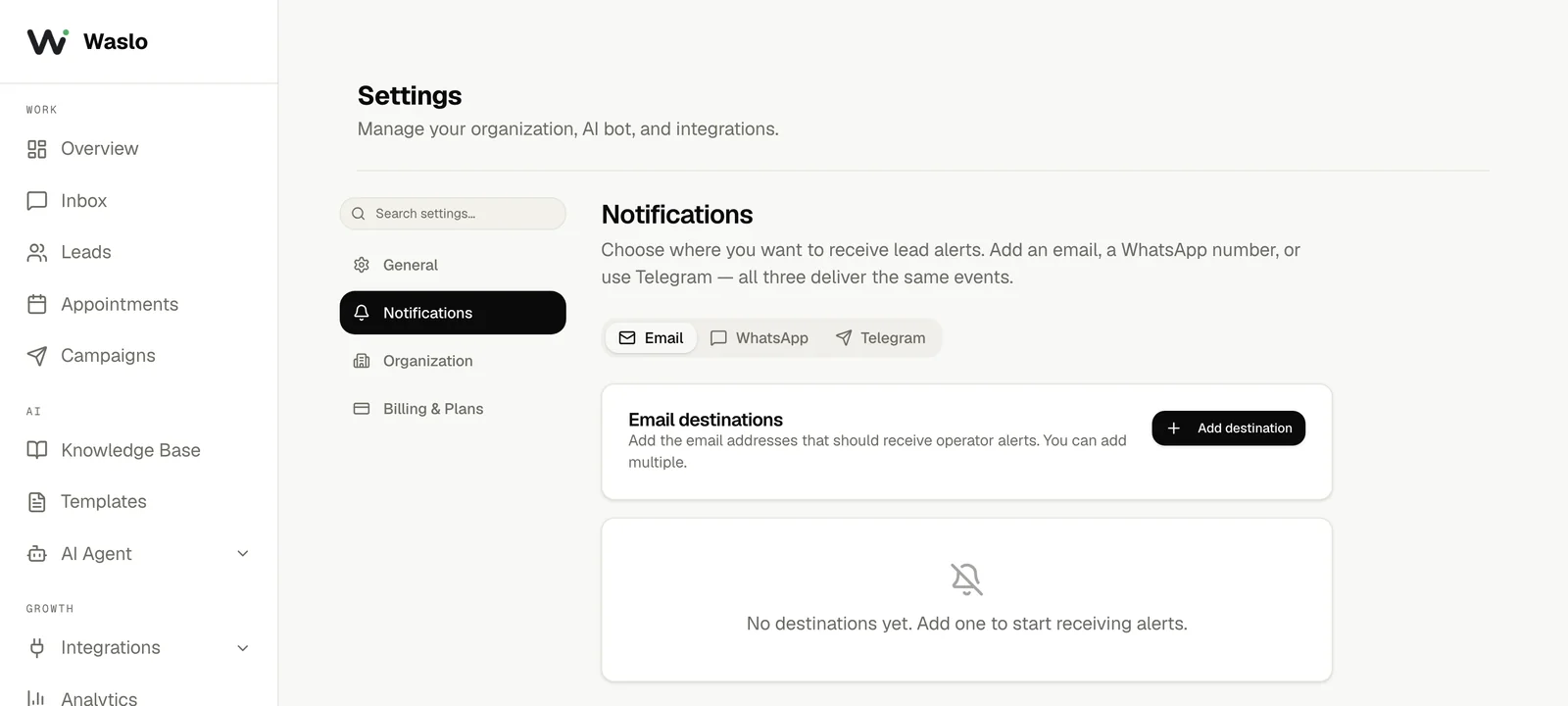
  1. Go to Dashboard → Settings → Notifications.
  2. Waslo supports three notification destinations: Email, WhatsApp, and Telegram.
  3. Select your preferred tab (Email, WhatsApp, or Telegram) and configure the recipient details.
  4. Save your changes to receive instant notifications when a guest is ready for a human handoff.

Step 7 — Configure Staff Notifications


The Result — A Seamless Customer Journey

Once configured, the customer interaction is fully automated and highly professional. Here is a preview of the customer journey:

Prospect: Hi, how much is your monthly membership? And what time is the yoga class on Saturday?

AI Agent (Jordan): Hello. Our monthly membership is $59, which includes unlimited gym access and standard classes. Our Saturday yoga class is at 9:00 AM. You can view our full class schedule and membership details here: https://fitlife-gym.com/schedule.

Prospect: Awesome! Can I come in for a free trial this Saturday?

AI Agent (Jordan): We would love to have you. You can book your free trial workout for this Saturday directly using this link: https://cal.com/fitlife-gym/free-trial. Please arrive 10 minutes early so we can show you around.

What Happens Behind the Scenes:

  1. Administrative Answer: Prospect receives instant, accurate details about pricing and schedules.
  2. Schedule Link Shared: Prospect gets a clickable link to view class timetables.
  3. Trial Action: Prospect is guided to book a slot via Cal.com.
  4. Staff Alerted: Waslo classifies the prospect as HOT, pauses the AI agent, and alerts the sales team via Email, WhatsApp, or Telegram:
    • "HOT Prospect Alert: Jane Doe (+123456789) is ready to book a trial. Class: Yoga. Calendar link shared."

Playbook Checklist

Ready to deploy? Make sure you have completed each of these setup steps:

  • Integrations: WhatsApp is active and showing a green Connected status.
  • Knowledge Base: Uploaded documents containing membership details, hours, and class schedules.
  • AI Instructions: Configured the prompt keeping instructions administrative and strictly avoiding coaching/health advice.
  • Calendar: Connected your scheduling link.
  • Classification: Booking Intent preset enabled.
  • Notifications: Enabled Email, WhatsApp, or Telegram alerts for HOT leads.

Related guides

Ready to get started?

75 free credits on signup — no card needed.

Get Started