Waslo for iPhone and Android
Set up your AI agent, get alerts and answer customers from your iPhone or Android phone.
Last updated November 20, 2026
On this page
Waslo for iPhone and Android is the full Waslo experience for your daily work. You can create a workspace, set up the agent, connect channels, follow what the agent is doing and step in when a customer needs a person.
Get the app
- Requirements: an iPhone with iOS 26 or newer, an iPad with iPadOS 26 or newer, or an Android phone or tablet with Android 8 or newer.
- Download: Waslo on the App Store or Waslo on Google Play. On the website, Settings → Notifications → Mobile app shows a QR code you can scan with your phone; it opens the right store for your phone.
- Sign in or sign up with Google or with your email and password, and on an iPhone also with Apple. An account you already use on waslo.io works in the app.
The app follows your phone's language and its light or dark mode.
Set up from your phone
A new workspace is guided through the setup:
- Choose your type of business, and the agent starts from a template for it, in your language.
- Tell the agent about your business. You can add a document or your website so it learns your prices, hours and services.
- Connect a channel. Link WhatsApp with its 8-character code, or connect Instagram, Messenger, Telegram or Outlook.
- Try the agent yourself before a customer does.
Home, Needs you and Inbox
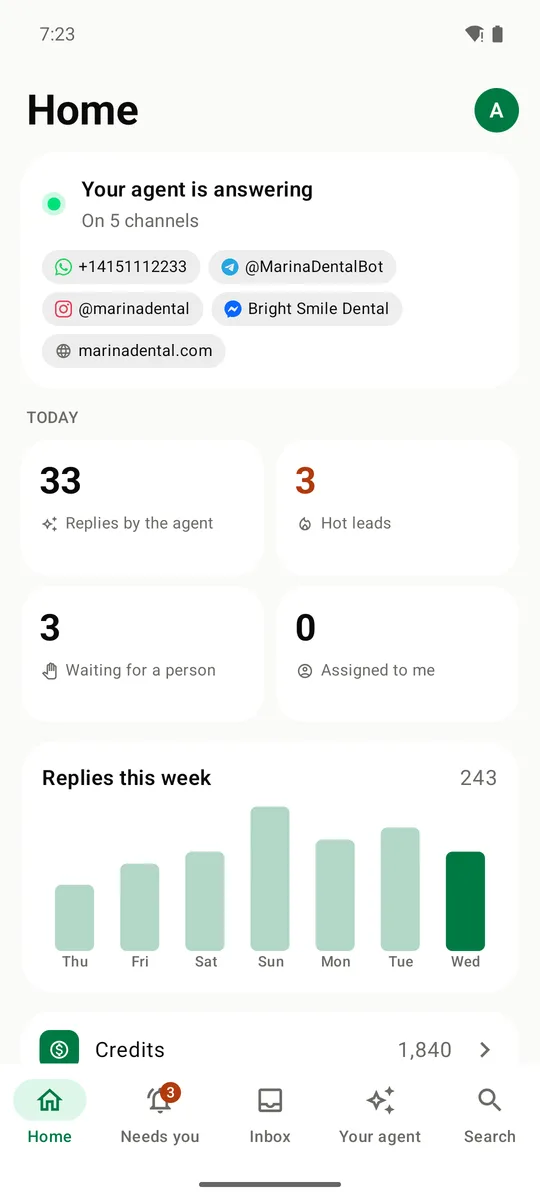
Home shows whether your agent is answering and on which channels, today's replies, hot leads, the conversations waiting for you and your credit balance.
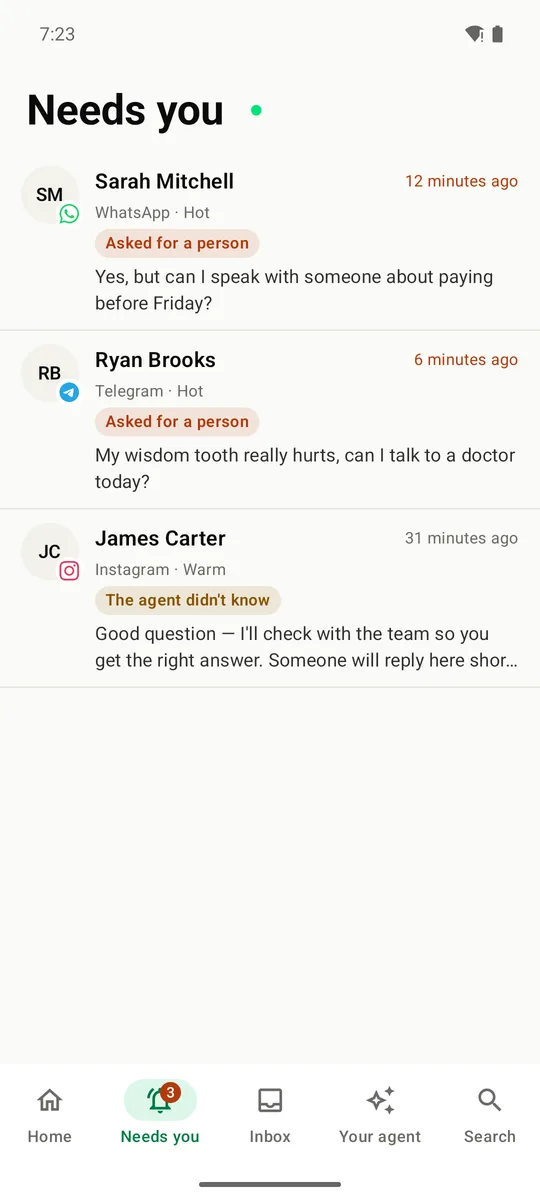
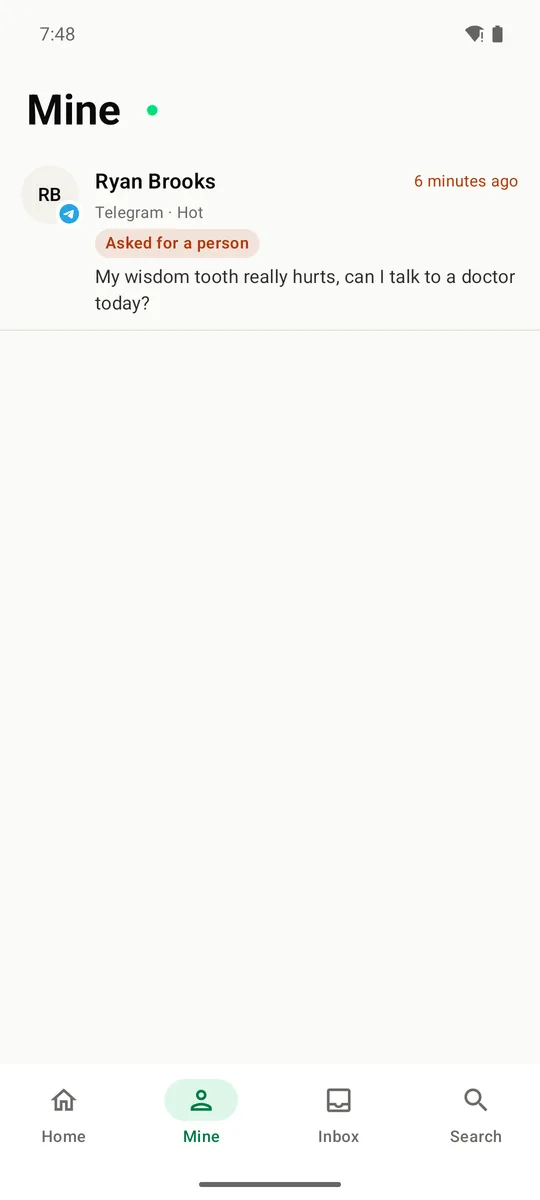
Needs you lists the conversations waiting for a person, with the reason and how long the customer has waited. Team members see Mine in its place: the customers assigned to them.
Inbox holds every conversation, with search, including the ones the agent is handling and those closed or archived.
Phone alerts
The app can alert you when:
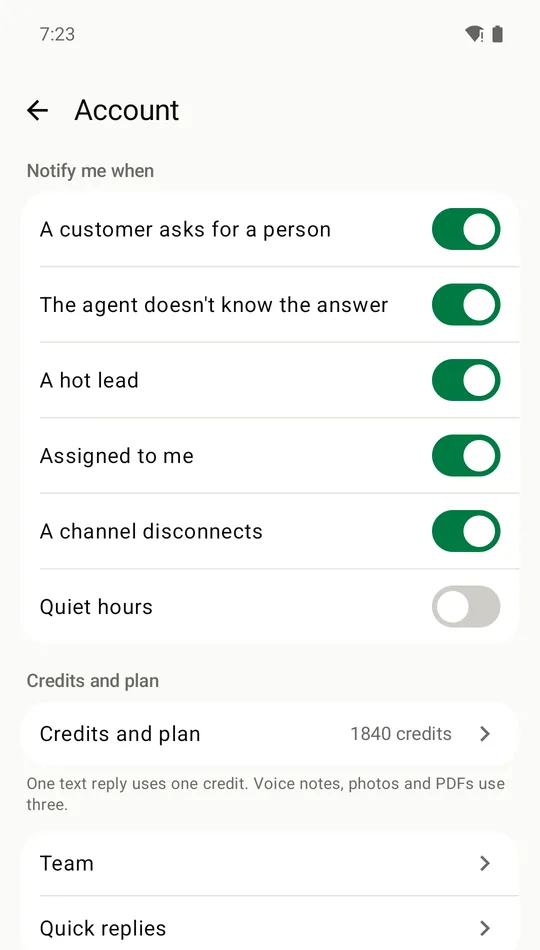
- A customer asks for a person
- The agent does not know the answer
- A hot lead comes in
- A conversation is assigned to you
- A channel disconnects
Tap an alert to open the conversation. Choose which alerts you receive and set Quiet hours in the app, or on the website at Settings → Notifications → Mobile app.
Owners and admins can receive every alert. Team members are alerted about the conversations assigned to them.
The website page also lists every phone signed in with your account, and you can sign one out from there.
Inside a conversation
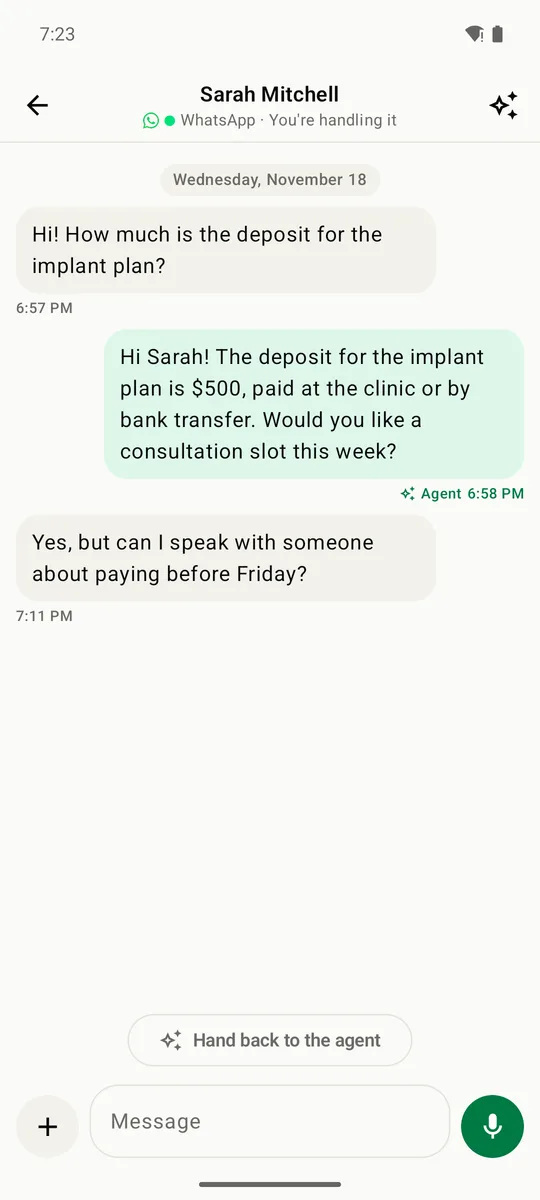
- Take over stops the agent so you can answer. Hand back lets it continue.
- Reply with text, quick replies, products from your catalog, photos or voice notes.
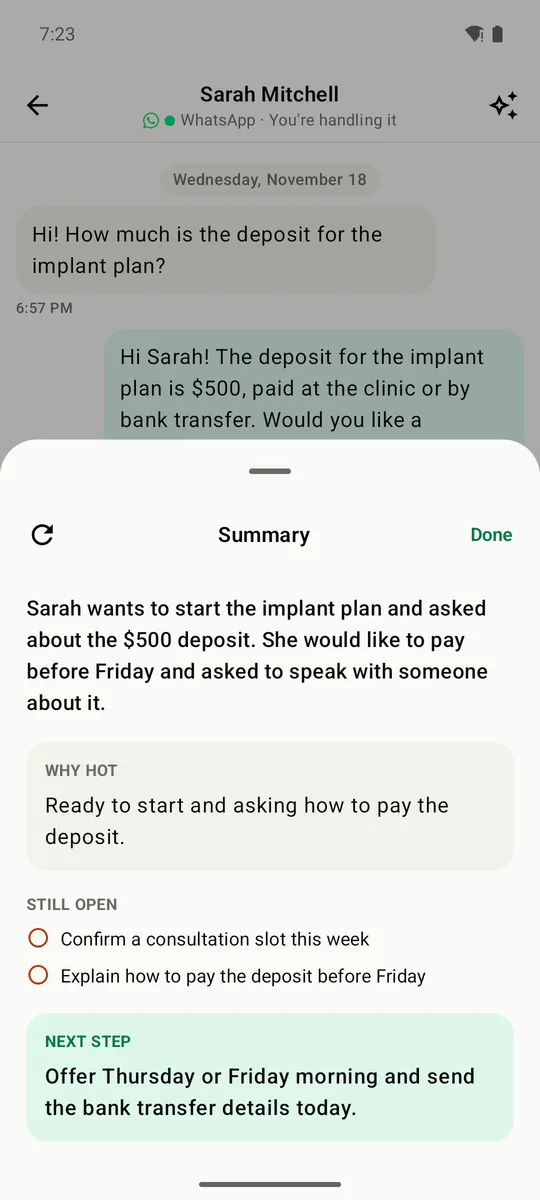
- Open an AI summary: what the customer wants, what is still open and the suggested next step. A new summary costs 3 credits.
Photos and voice notes are not available on every channel. Email, Outlook and website chat do not support voice notes.
Your agent in the app
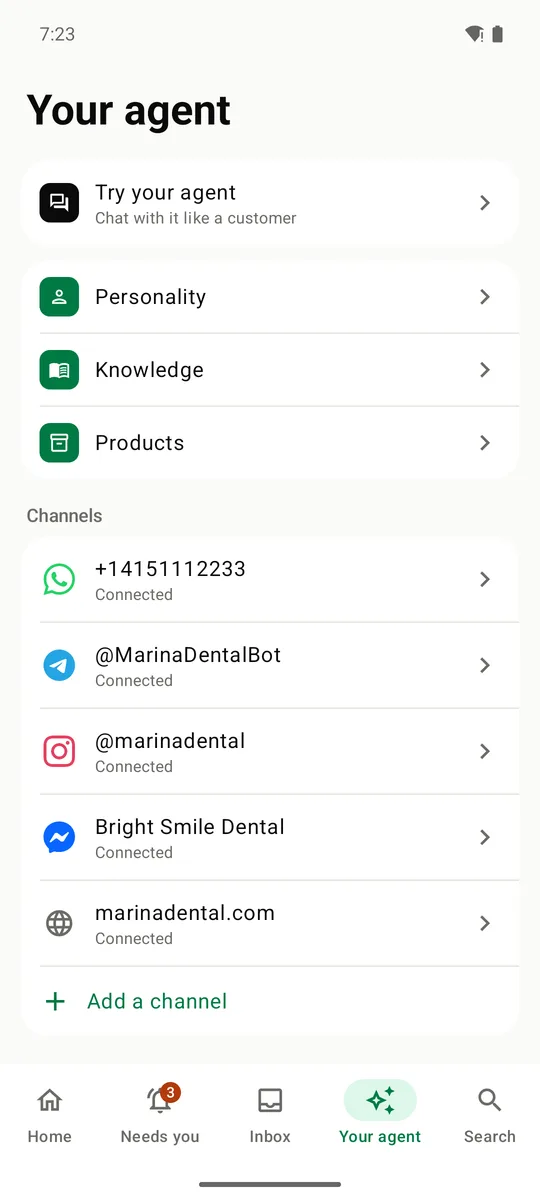
Under Your agent you can change its instructions, reply language and welcome message, manage what it knows, manage products, and set handoff, follow-ups, lead scoring and voice replies. You can also connect Google Calendar and HubSpot.
Use the app with your team
Your whole team can work from the app, and every plan has unlimited team seats. Each person signs in with their own account on their own phone.
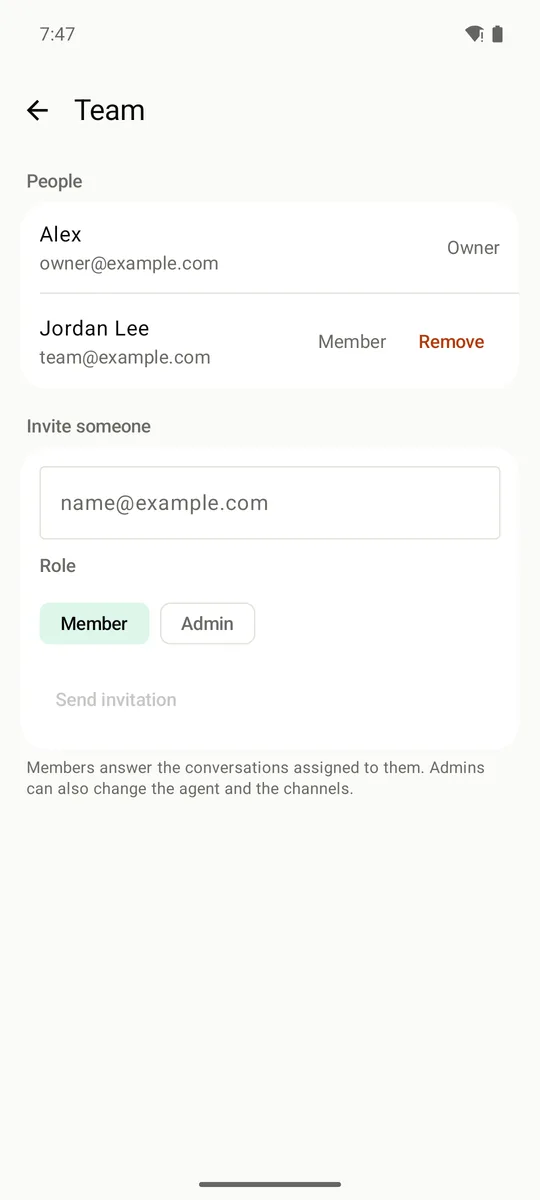
- An owner or admin opens Account → Team.
- Under Invite someone, they enter the person's email, choose Member or Admin and tap Send invitation.
- The person opens the link in the email and accepts. If they do not have an account yet, they create one there.
- They install the app (App Store or Google Play) and sign in with that account.
Owners and admins assign a customer from the customer's details inside a conversation.
- Members get Home, Mine, Inbox and Search. Mine lists the customers assigned to them, and their alerts cover those conversations.
- Admins can also change the agent and the channels, and invite more people.
- Only the owner can remove someone from the team.
For roles on the website, see Team Management.
Credits and plans
You can buy credit packs or subscribe to Growth in the app. These purchases go through the App Store on an iPhone or iPad and through Google Play on Android, so that store's prices and billing apply to them.
What opens on a computer
A few pages need a big screen, such as the website chat installer, detailed analytics and campaigns. The app can email you the link so you can open them on a computer.