Salla Catalog Sync
Install Waslo from the Salla App Store and your agent starts answering from your live catalog — no account to create, nothing to paste.
Last updated October 12, 2026
On this page
What it does
Install Waslo on your Salla store and your AI agent starts selling from it — on WhatsApp, Instagram, Telegram and every other channel you connect:
- Products, prices and photos sync automatically. Your Waslo catalog mirrors the store: what's live in Salla is what the agent offers.
- The agent answers product questions ("do you have this?", "how much is…?") from your real catalog — it quotes only the products and prices you sell, and says it will check when something isn't there.
- Photos and buy links. When a customer shows interest, the agent sends the product photo with its price and a direct link to the product page in your store.
- Always fresh. The catalog re-syncs when you install, whenever you press Sync now, and automatically once a day.
While the sync is active your Waslo catalog is a read-only mirror — manage products, prices and photos in Salla, and the changes flow down on the next sync.
Install from the Salla App Store
Salla works differently from every other platform on this site: there is nothing to paste, and no Waslo account to create first.
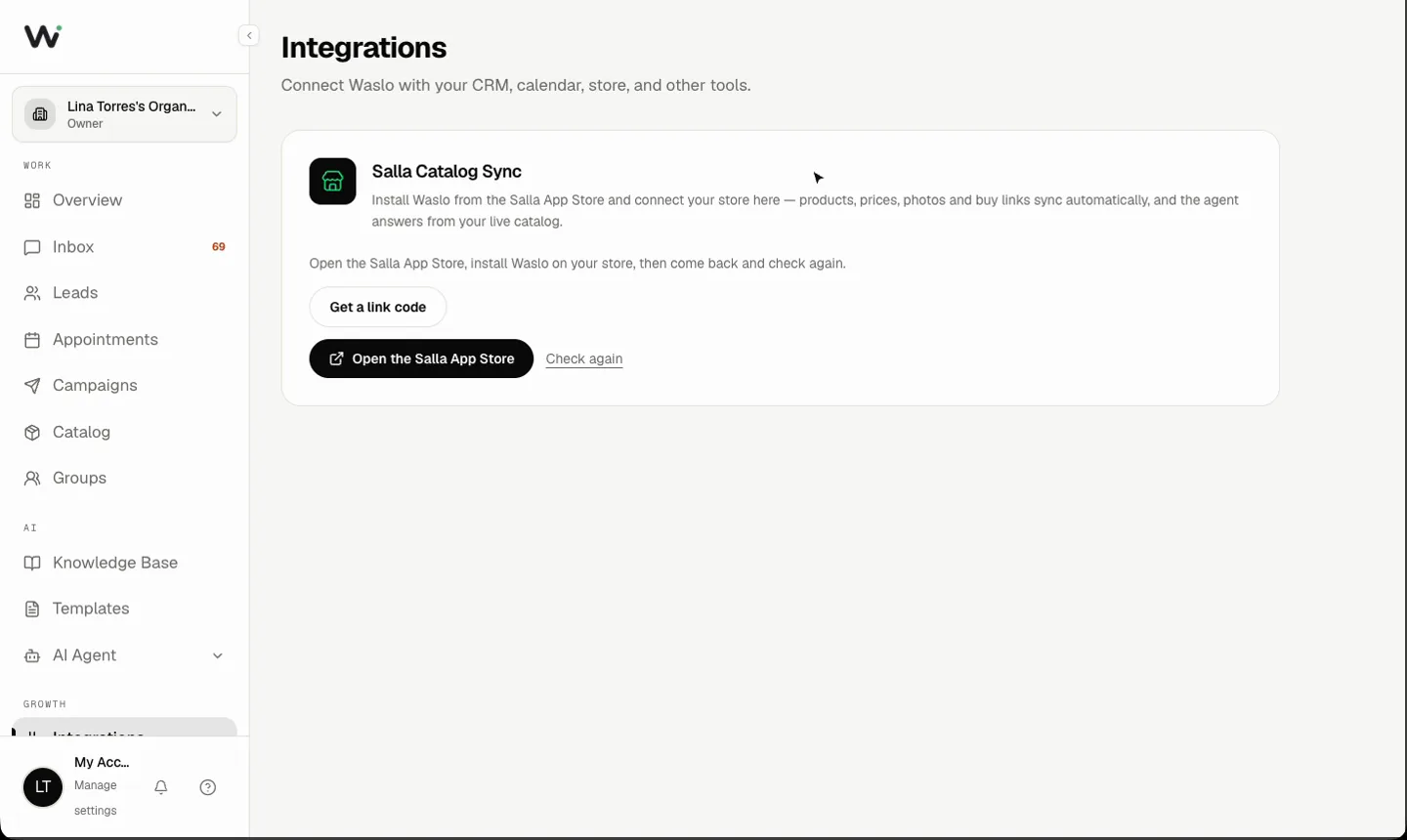
- Open the Salla App Store and install Waslo on your store.
- Salla authorises the app itself. Your products start syncing straight away.
- Open Waslo from the apps menu in your Salla dashboard. You'll see your store name and a confirmation that it's connected.
That is the whole setup.
The workspace we create for you
If the email on your Salla account has never used Waslo, we create a workspace at that moment and put your store in it. We tell you so on the screen rather than let you find it later, and we email that address a link to set a password.
You don't need a password to use Waslo from inside Salla — Open the Waslo dashboard in the app takes you straight in. Set one when you want to sign in at waslo.io directly, or add a teammate.
The workspace starts on Pay-as-you-go with 75 free credits — no card, no subscription. Catalog sync is included for stores that arrive through Salla.
Already have a Waslo account?
Then a second workspace is the last thing you want. Move the store into the one you already use:
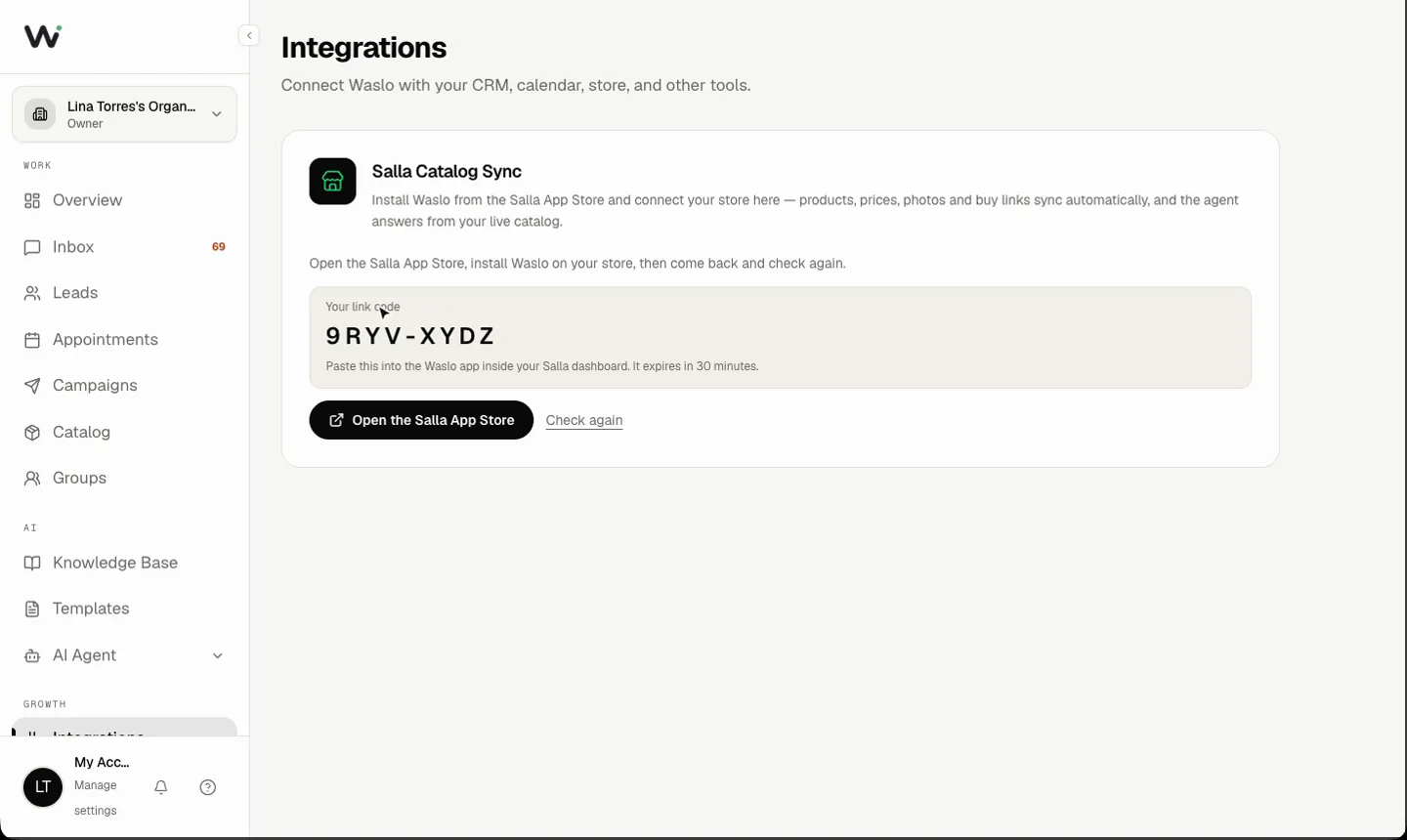
- In your existing Waslo workspace open Dashboard → Integrations → Salla and press Get a link code. It is valid for 30 minutes.
- In your Salla dashboard open the Waslo app's settings, paste the code into the Waslo code field and save.
- Salla tells us immediately and the store attaches to your existing workspace — alongside your WhatsApp numbers, your knowledge base and your team.
Day-to-day
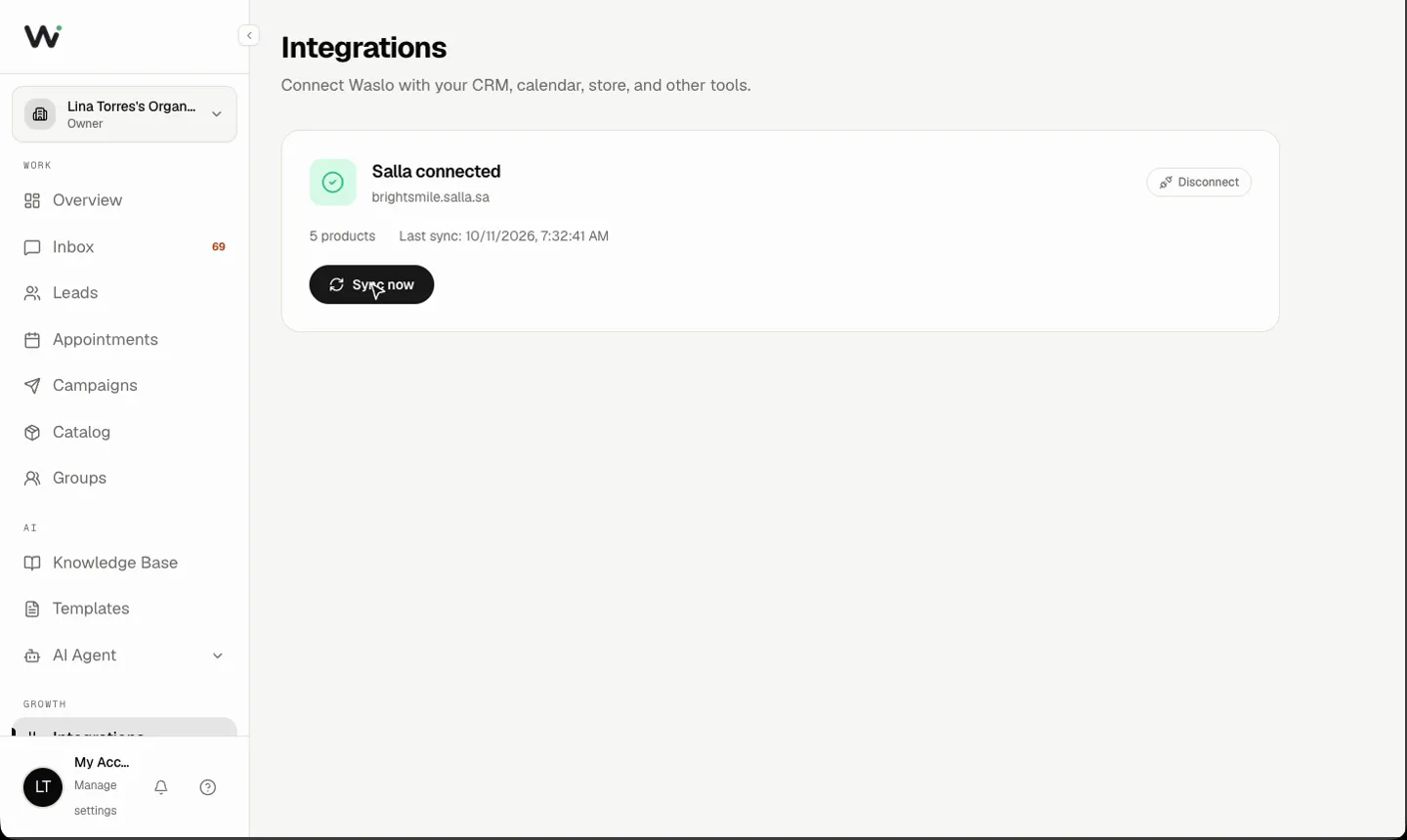
- Sync now on the Catalog page pulls the latest changes immediately — new products, price edits, deletions.
- The automatic daily sync keeps things fresh without you thinking about it.
- The Catalog page shows the synced products read-only.
- The catalog holds up to 10,000 products; larger stores sync the first 10,000.
Uninstalling
Removing Waslo from your Salla store stops the sync and deletes the mirrored products from Waslo. Your store is never touched, and the rest of your workspace — conversations, leads, knowledge base — stays exactly as it was. Reinstalling reconnects it.
Troubleshooting
- "Not connected yet" inside the app — Salla's authorisation can land a few seconds after the install. Reload the page.
- No products synced — Waslo needs the products: read permission, and Salla fixes an app's permissions only at install time. If it was missing, reinstall the app on your store.
- A product isn't appearing — products that aren't on sale still sync, marked unavailable, so the agent can say "not available right now" instead of nothing at all. Deleted products disappear on the next sync.
- The dashboard opened the wrong workspace — you were signed in to another Waslo account in that browser. Use Open the Waslo dashboard from inside Salla; it always opens the store's own workspace.
What it costs
Waslo is free to install from Salla, and you get 75 credits to try the agent on your real customers. Nothing is charged automatically, no card is needed to start, and your connected store does not disconnect when the credits run out. When the credits run out the agent pauses until you top up; the store stays connected.
How stores installed from Salla continue after the trial is being settled with Salla itself, and will appear here once it is confirmed.